
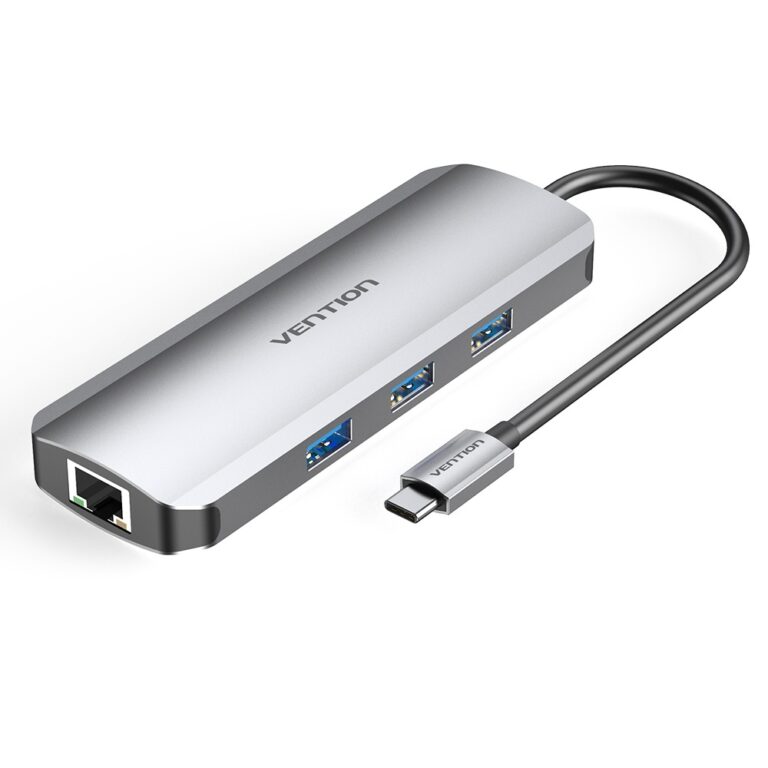
Vention 8 in 1 USB-C Multi-functional Docking Station
KSh6,999.00 KSh8,000.00 EX-VAT
Vention 8 in 1 USB-C Multi-Functional Docking Station
The Vention 8 in 1 USB-C Multi-Functional Docking Station expands a single USB-C port into eight essential connectivity options for students and professionals using modern ultraportable laptops. This compact hub provides three USB 3.0 ports, HDMI 4K video output, SD and microSD card readers, USB-C Power Delivery pass-through, and Gigabit Ethernet through one connection. The aluminum alloy construction dissipates heat effectively during simultaneous multi-port use while maintaining a slim profile that fits easily in laptop bags for mobile productivity anywhere.
Key Features & Benefits
- 8 Ports from One USB-C Connection: Transform a single USB-C port into three USB-A data ports, 4K HDMI output, dual card readers (SD + microSD), PD charging, and Gigabit Ethernet—eliminating adapter clutter and cable management headaches
- 4K HDMI Video Output: Connect external monitors or projectors at resolutions up to 4K@30Hz for dual-screen workspaces, creating expanded desktop areas for comparing spreadsheets, documents, and research materials side-by-side
- 100W Power Delivery Pass-Through: Charge laptops at full speed through the hub’s USB-C PD port while using all other functions simultaneously, preventing battery drain during intensive work sessions with external displays and peripherals
- Dual Card Reader Integration: Transfer photos and videos from SD and microSD cards simultaneously at UHS-I speeds up to 104MB/s, eliminating the need to carry separate card readers for cameras, drones, and action cameras
- Gigabit Ethernet Connectivity: Access stable wired network speeds up to 1000Mbps for reliable video conferences and large file transfers, bypassing congested Wi-Fi in crowded dorms, coffee shops, and office buildings
Technical Specifications
USB Data Ports
- USB 3.0 Ports: 3× USB 3.0 Type-A female
- Data Transfer Speed: Up to 5Gbps per port
- Backward Compatibility: USB 2.0 and USB 1.1 devices supported
- Power Output: Up to 900mA per port (bus-powered)
- Hot-Swap Support: Yes, all USB ports
Video Output
- HDMI Port: 1× HDMI Type-A female
- Maximum Resolution: 4K@30Hz (3840×2160)
- Supported Resolutions: 4K@30Hz, 1080p@60Hz, 1080p@30Hz, 720p, 480p
- HDMI Standard: HDMI 1.4/2.0
- HDCP Compliance: HDCP 1.4/2.2 (content protection)
- Audio Support: HDMI audio pass-through for multi-channel sound
Network Connectivity
- Ethernet Standard: Gigabit Ethernet (10/100/1000Mbps)
- Connector Type: RJ45 female
- Chipset: Realtek RTL8153 or similar reliable controller
- Auto-Negotiation: Yes, automatically selects optimal speed
- Wake-on-LAN: Supported when configured
Card Reader Specifications
- SD Card Slot: SD/SDHC/SDXC up to 2TB capacity
- MicroSD Slot: MicroSD/MicroSDHC/MicroSDXC up to 2TB capacity
- Transfer Speed: Up to 104MB/s (UHS-I supported)
- Simultaneous Access: Both card slots usable concurrently
- Hot-Swap: Yes, insert/remove cards during operation
Power Delivery
- USB-C PD Port: 1× USB-C female for charging pass-through
- PD Power Support: Up to 100W input
- Power Pass-Through: Charges laptop minus ~10-15W hub consumption
- PD Protocol: USB Power Delivery 2.0/3.0
- Recommended Charger: 65W+ for optimal laptop charging during use
Physical Specifications
- Dimensions: Approximately 110-130mm × 45-55mm × 12-16mm
- Weight: 85-105g
- Material: Aluminum alloy housing with ABS plastic end caps
- Color: Space gray, silver, or black (varies by model)
- Cable Length: 15-20cm integrated USB-C cable
- Thermal Design: Aluminum body functions as passive heat sink
Host Connection
- Input Interface: USB-C male (integrated cable)
- USB-C Standard: USB 3.1 Gen 1 (5Gbps bandwidth)
- Thunderbolt Compatible: Yes (Thunderbolt 3/4 ports)
- Alt Mode Required: DisplayPort Alt Mode for HDMI video output
Compatibility
- Operating Systems: Windows 11/10/8, macOS 10.12+, Chrome OS, Linux, iPadOS 13+
- Compatible Devices: MacBook Pro/Air, Dell XPS, HP Spectre/EliteBook, Surface, Lenovo ThinkPad, Chromebooks, iPad Pro (USB-C models)
- Driver-Free: Plug-and-play on modern operating systems
- Requirements: USB-C port with DisplayPort Alt Mode and Power Delivery
Environmental
- Operating Temperature: 0°C to 45°C (32°F to 113°F)
- Storage Temperature: -20°C to 70°C (-4°F to 158°F)
- Humidity: 10% to 90% non-condensing
- Certifications: CE, FCC, RoHS compliant
Use Cases & Applications
For Students
Modern student laptops like MacBook Air, Dell XPS, and Surface devices sacrifice ports for thin designs, leaving only 2-3 USB-C connections total. The Vention 8-in-1 hub solves this limitation by providing external monitor connectivity for dual-screen studying, USB ports for keyboard and mouse, wired Ethernet for stable online exam connections, and SD card readers for transferring photos from campus photography projects—all while maintaining laptop charging through a single connection.
Dorm room study environments benefit dramatically from expanded connectivity. Connect an external monitor via HDMI for extended desktop workspace where research papers occupy one screen while source documents and lecture videos display on another. The Gigabit Ethernet port provides reliable connectivity during online exams where Wi-Fi drops could cost points, while USB ports accommodate flash drives for quick file transfers between group project members.
Photography and videography students transfer large media files multiple times daily from cameras and drones. The dual card readers handle SD cards from DSLRs and microSD cards from action cameras or drones simultaneously, eliminating device juggling. Transfer a 64GB SD card to laptop storage in 10-12 minutes over USB 3.0, then immediately backup to an external drive connected via USB port—workflows that would require sequential operations with single-slot readers.
Engineering and design students working with CAD files, simulations, or video projects need stable network connections for uploading assignments and accessing cloud resources. The Gigabit Ethernet port delivers consistent 900-1000Mbps speeds compared to congested dorm Wi-Fi that frequently drops to 10-20Mbps during peak evening hours when hundreds of students stream content simultaneously.
For Business Professionals
Remote workers require desktop-like functionality from portable laptops when establishing home offices. The Vention hub creates complete workstations with external monitors for spreadsheet analysis across dual screens, wired Ethernet for stable video conferences without pixelation or freezing, USB peripherals including keyboards and mice for ergonomic comfort, and continuous laptop charging—all connecting and disconnecting with a single cable when transitioning between desk work and mobile computing.
Business travelers presenting at client sites face unpredictable connectivity environments. The hub provides comprehensive connection options—HDMI for modern displays and projectors, Ethernet for accessing secure client networks, USB ports for presentation clickers and wireless headset dongles, and card readers for accessing backup presentations stored on SD cards. The compact aluminum design fits easily in laptop bags without adding significant bulk.
Consultants working from coworking spaces benefit from portable connectivity solutions establishing familiar workspaces anywhere. Connect to available external monitors for comfortable dual-screen work, plug in Ethernet for stable connections bypassing overcrowded shared Wi-Fi, and maintain laptop charging throughout extended work sessions—all through equipment that packs away quickly when moving between client meetings.
Content creators conducting video calls need reliable connections for client meetings and remote collaboration. The Gigabit Ethernet eliminates the bandwidth fluctuations and latency spikes common on wireless networks, ensuring professional video quality during important discussions. External displays connected via HDMI enable presenting materials clearly while maintaining eye contact with webcams positioned on primary screens.
General Applications
- Digital Content Creation: Connect 4K displays for video editing timelines and photo retouching while transferring footage from SD cards, backing up to external drives via USB ports, and maintaining stable network connectivity for cloud uploads
- Financial Analysis: Expand spreadsheet workspace to external monitors for comparing data across multiple documents while Gigabit Ethernet provides secure, stable VPN connections to corporate networks
- Software Development: Connect external displays for code editors and documentation browsers while USB ports link development boards, programmers, and debugging equipment to laptops running integrated development environments
- Photography Workflows: Review images on color-accurate external monitors while simultaneously transferring from camera SD cards and backing up to external SSDs, all while uploading selects to cloud storage over Gigabit Ethernet
- Online Teaching: Present educational materials on external displays via HDMI while accessing teaching resources over wired Ethernet, connecting document cameras through USB ports, and maintaining laptop charging during extended class sessions
- Gaming Setups: Connect gaming laptops to larger external displays for immersive gameplay while Gigabit Ethernet reduces latency below wireless levels and USB ports accommodate gaming peripherals like mice, keyboards, and controllers
- Medical Applications: Display patient records and medical imaging on external monitors while maintaining HIPAA-compliant wired network connections and connecting medical peripherals via USB ports
- Real Estate Virtual Tours: Connect laptops to client displays for property presentations while accessing listing databases over stable Ethernet connections and transferring property photos from camera SD cards
Display Configuration: The HDMI port supports resolutions up to 4K@30Hz, delivering sharp text and detailed images suitable for productivity work, content consumption, and photo editing. For business documents, spreadsheets, and web browsing, 4K@30Hz provides excellent clarity with readable small text that 1080p displays cannot match.
Video editors and gamers requiring high refresh rates may find 30Hz limiting for fast-motion content. For these applications, consider reducing resolution to 1080p@60Hz for smoother motion at the expense of lower pixel density. The hub automatically negotiates optimal resolution and refresh rate combinations based on connected display capabilities and laptop graphics output.
Extended desktop mode spans workspace across laptop and external monitor simultaneously, allowing different applications on each display. Dedicate the external monitor to primary work—documents, spreadsheets, design software—while laptop screens display communication apps, email, calendars, and system monitoring tools. Mirror mode duplicates content across both displays for presentations requiring multiple viewing angles.
Power Delivery Optimization: The USB-C PD port accepts chargers up to 100W, delivering approximately 85-90W to laptops after accounting for the hub’s 10-15W operational consumption. This proves sufficient for charging most ultrabooks including 13-inch MacBook Pro (61W), Dell XPS 13 (45W), and HP Spectre x360 (65W) during intensive use with external displays and multiple peripherals.
High-performance 15-inch laptops requiring 85-100W charging may charge slowly during demanding workloads like video rendering, 3D modeling, or gaming when using 65W chargers. For these laptops, use original 87W or 96W chargers to ensure adequate power delivery maintaining battery charge even during processor-intensive tasks. Lower-wattage chargers (45W or less) may only maintain battery levels without increasing charge during active use.
Connect USB-C chargers to the hub’s PD port rather than directly to laptops. This configuration creates elegant single-cable desk setups—plug the hub into your laptop, connect everything else (charger, monitor, Ethernet, peripherals) to the hub, then disconnect from your entire desk setup by unplugging just the hub’s USB-C cable. All other devices remain connected to the hub for instant reconnection next session.
USB 3.0 Performance: The three USB 3.0 ports share the hub’s 5Gbps connection to your laptop. When transferring files from a single external SSD, expect 400-450MB/s typical speeds—a 10GB backup completes in approximately 25 seconds. Multiple simultaneous transfers divide available bandwidth, so three external drives transferring concurrently may each achieve 150-200MB/s as they share the 5Gbps total bandwidth.
For typical workflows—keyboard, mouse, webcam, and occasional flash drive transfers—performance remains excellent without bottlenecks. These low-bandwidth peripherals consume minimal USB bandwidth, leaving substantial capacity for high-speed transfers when needed. Plan intensive data operations sequentially rather than simultaneously for maximum individual transfer speeds.
USB ports supply up to 900mA each, adequate for most peripherals including keyboards, mice, webcams, wireless headset dongles, and bus-powered external SSDs. Some external hard drives with spinning platters draw more current and may require Y-cables connecting to multiple USB ports, external power adapters, or powered USB hubs for reliable operation. USB-powered monitors exceed available power and require separate power sources.
Network Performance: The Gigabit Ethernet port provides stable wired connectivity reaching 900-1000Mbps on local networks and matching internet service plan speeds up to Gigabit. Real-world internet speeds depend on your ISP plan—a 100Mbps connection delivers full 100Mbps through the hub, while Gigabit fiber reaches 900-950Mbps typical. Local network transfers between computers or NAS devices benefit most, achieving 110MB/s file copy speeds.
Latency decreases dramatically compared to Wi-Fi, particularly valuable for video conferencing, online gaming, VoIP calls, and real-time collaboration tools. Wired connections typically show 1-5ms latency to local network equipment compared to 10-40ms over Wi-Fi in congested environments, creating noticeably more responsive experiences for latency-sensitive applications like video calls and remote desktop sessions.
Some corporate and university networks restrict device access through MAC address filtering. If the Ethernet connection establishes physically but cannot access network resources or internet, contact IT administrators—they may need to register the hub’s network adapter MAC address in authentication systems before granting access. This proves particularly common on enterprise networks with stringent security policies.
Card Reader Usage: The SD and microSD card slots support cards up to 2TB capacity, accommodating even the largest professional memory cards. Both slots function simultaneously, enabling transfers from two cards concurrently—useful for photographers using dual-card camera bodies, videographers with multiple cameras, or drone operators backing up flight footage while transferring ground camera footage.
Transfer speeds reach 90-104MB/s with UHS-I cards, matching the cards’ maximum interface speed. A 64GB card transfers completely in approximately 10-12 minutes. UHS-II cards rated for higher speeds (up to 312MB/s) still transfer at UHS-I speeds (104MB/s maximum) since the hub supports UHS-I interface only—adequate for most users though professional workflows may benefit from dedicated UHS-II readers.
Hot-swapping cards works seamlessly—insert and remove cards while the hub operates without issues. However, always safely eject cards using operating system eject functions before physically removing them to ensure all data writes complete and file system updates flush to storage. Premature removal during active writes can corrupt files or damage card file systems requiring reformatting.
Thermal Management: The aluminum alloy housing functions as a large passive heat sink, dissipating heat from the USB hub controller, Ethernet adapter, HDMI converter, and Power Delivery circuitry. The hub becomes noticeably warm during extended use—particularly when charging laptops at high wattage while simultaneously driving 4K displays, transferring files, and maintaining Gigabit network connections—but remains within safe operating temperatures.
Position the hub on hard surfaces like desks or monitor stands rather than soft materials like fabric, paper, or cushions that block heat dissipation. Ensure adequate airflow around all sides of the device, avoiding enclosed spaces or stacking objects on top during operation. The ventilation slots in the housing require unobstructed air circulation for optimal thermal performance.
The aluminum construction provides superior thermal management compared to plastic hubs that can overheat during intensive multi-port use. This design prevents thermal throttling—where overheating causes connection instability, reduced transfer speeds, or complete disconnection—ensuring consistent performance during extended work sessions using all eight ports simultaneously.
Setup and Initial Connection: Connect the hub’s integrated USB-C cable to an available USB-C port on your laptop. Modern operating systems (Windows 10/11, macOS 10.12+, Chrome OS) recognize the device immediately and install necessary drivers automatically for the Ethernet adapter and card readers—this process typically completes within 10-30 seconds with brief notification messages.
Connect your USB-C charger to the hub’s PD port rather than directly to your laptop. The laptop should indicate charging status within seconds. If charging doesn’t begin, verify your charger provides adequate wattage (60W+ recommended) and supports USB Power Delivery protocol. Some laptops display low-power warnings when chargers provide insufficient wattage for simultaneous charging and hub operation.
Attach an HDMI cable from the hub to your external monitor or projector. Most laptops detect external displays automatically and either mirror or extend the desktop. If the monitor shows no signal despite proper connections, access display settings to manually detect and configure external displays. Some laptops require enabling DisplayPort Alt Mode or USB-C video output in BIOS settings before external displays function.
Compatibility Verification: Not all USB-C ports support complete USB-C specifications. Some USB-C ports provide data transfer only without video output capability (no DisplayPort Alt Mode) or charging support (no Power Delivery). Verify your laptop’s USB-C ports support DisplayPort Alt Mode for HDMI output and Power Delivery for charging before purchasing this hub.
Thunderbolt 3 and Thunderbolt 4 ports fully support this hub since Thunderbolt includes DisplayPort Alt Mode and Power Delivery as standard features. USB-C ports on budget laptops or older models (2015-2017) may lack these advanced features depending on manufacturer implementation—consult laptop specifications, user manuals, or manufacturer websites for detailed USB-C port capabilities.
iPad Pro models with USB-C (2018 and newer) work with this hub for external display output, USB peripheral connectivity, and card reading. However, iPadOS limitations restrict some functionality compared to laptop operating systems—certain USB devices may not function, external display mirroring differs from extended desktop, and charging performance varies based on iPad Pro power requirements.
Portability Advantages: The compact aluminum design weighs approximately 100g—roughly equivalent to a smartphone—making it easy to carry in laptop bags, briefcases, or backpack pockets without significant weight penalty. Students moving between dorm rooms, libraries, and classrooms benefit from having comprehensive connectivity wherever they study, while business travelers maintain consistent workspace setups across hotels, client offices, and coworking spaces.
The integrated 15-20cm cable eliminates concerns about losing or forgetting separate connection cables. The fixed cable length keeps the hub positioned conveniently near laptops without excess coiling or cable management requirements. The durable aluminum construction survives repeated packing and unpacking in bags without the structural damage plastic hubs experience from repeated impacts.
Pack a spare HDMI cable (2-3 meters) and Ethernet cable (2-3 meters) with the hub for maximum location flexibility. Many conference rooms and coworking spaces provide displays and network jacks but not cables—carrying your own ensures connectivity anywhere. The hub’s compact size combined with folded cables fits easily in laptop bag accessory compartments without consuming valuable space.
Troubleshooting Common Issues: External displays showing no signal typically indicates USB-C ports lacking DisplayPort Alt Mode support. Verify your laptop’s specific USB-C port supports video output—some laptops restrict video to certain ports only. Try different USB-C ports if your laptop has multiple connections, and consult laptop documentation for port-specific capabilities.
Laptop not charging through the hub usually means insufficient charger wattage or incompatible charging protocols. Verify your charger explicitly supports USB Power Delivery (not just USB-C physical connector—these are different specifications). Some laptops implement proprietary authentication refusing charging from third-party chargers even when they meet wattage requirements.
Slow USB transfer speeds may indicate USB 2.0 connection instead of USB 3.0. Check Device Manager (Windows) or System Information (macOS) to verify the hub operates at USB 3.0 speeds (listed as 5Gbps or “SuperSpeed”). Connection at USB 2.0 speeds (480Mbps) suggests using a USB 2.0 port or cable, or indicates potential driver issues requiring operating system updates.
Ethernet connection not working despite cable connection typically relates to network configuration or security restrictions. Verify the Ethernet cable works by testing with another device. Check network settings show the Ethernet adapter as connected. On restricted corporate or university networks, contact IT administrators to register the hub’s MAC address for network authentication.
Limitations to Consider: The hub cannot output to multiple 4K displays simultaneously—it supports one 4K@30Hz display via HDMI only. Users requiring dual 4K monitors or 4K@60Hz output need Thunderbolt 3/4 docking stations with greater video bandwidth capabilities, though these cost 2-3× more and sacrifice portability.
The hub cannot charge laptops using proprietary barrel-plug chargers—it exclusively supports USB-C Power Delivery charging. Laptops with dedicated charging ports cannot receive power through this hub, though all other features (video, USB, Ethernet, card readers) remain functional when laptops charge via their original power adapters.
Some USB-C laptops limit peripheral bandwidth or power delivery when using multiple features simultaneously. Charging at high wattage while driving 4K displays and transferring large files may exceed some laptops’ USB-C controller capabilities, causing reduced performance or connection instability. This proves more common on older USB-C implementations (2016-2017) than modern laptops with mature USB-C controllers.
When This Docking Station Excels: The Vention 8 in 1 USB-C Multi-Functional Docking Station suits students and professionals using modern USB-C laptops who need comprehensive, portable connectivity without desktop-scale docking station bulk. Its combination of 4K HDMI output, triple USB 3.0 ports, dual card readers, Gigabit Ethernet, and 100W Power Delivery creates complete mobile workstations from ultraportable laptops. The aluminum construction balances durability with light weight, making it ideal for anyone requiring consistent connectivity across multiple work locations—dorm rooms, libraries, home offices, client sites, or coworking spaces—while maintaining the portability that separate adapters cannot match.
Based on 0 reviews
Be the first to review “Vention 8 in 1 USB-C Multi-functional Docking Station”
Related products
-
Vention Accessories, Vention USB
Vention USB-C Multi-Functional 5 in 1 Docking Station
Vention USB-C Multi-Functional 5 in 1 Docking Station – VEN TGDHB
Key features;
- Model: VEN TGDHB
- Brand: Vention
- Type: USB-C Multi-Functional 5-in-1 Docking Station
- SD/MicroSD Card Slots: SD and MicroSD card readers for transferring data from memory cards
- Compatibility: USB-C devices, including laptops, tablets, and smartphones with compatible USB-C ports
- Power Delivery: Varies by model, check specific product details for supported charging rates
SKU: n/a -
Vention Accessories, Vention HDMI
Vention HDMI Cable 30M Black For Engineering
Vention Hdmi Cable 30M Black For Engineering
Key features;
- Connector Orientation: Straight
- Connector Type: Standard HDMI male-male
- Connector Material: 24k gold plated plug
- Shielding: Aluminum foil + multi-shielded anti-jamming material
- Jacket shell: PVC environmental material
SKU: n/a -
Vention Accessories, Vention HDMI
Vention 1 In 2 Out HDMI Splitter Gold
Vention 1 In 2 Out HDMI Splitter Gold
- Product Name: Vention 1 IN 2 OUT HDMI Splitter
- Input: 1 HDMI input port
- Outputs: 2 HDMI output ports
- Resolution: Supports various HDMI resolutions, including Full HD 1080p, 4K, and higher resolutions (depending on the specific model)
- Audio Support: Transmits audio signals along with the video
- HDMI Version: Supports HDMI 1.4 or HDMI 2.0 (depending on the specific model)
- HDCP Compatibility: Supports HDCP (High-bandwidth Digital Content Protection) for encrypted content playback (HDCP version depends on the specific model)
SKU: n/a -
Vention Accessories, Vention HDMI
Vention 2-Port HDMI Bi-Direction 4K Switcher Black ABS Type
Vention 2-Port HDMI Bi-Direction 4K Switcher Black ABS Type
Key features;
- Easy to setup and operate
- No external power required,just plug and play via HDMI cables.
- 4K@60Hz UHD Resolution
- The HDMI switch support max 4Kx2K@60Hz resolution and simultaneously transmit audio and video signal,enjoy visual effects.
- Wide Compatibility
- Works with all devices with HDMI interface, such as PCs, laptops,Xbox 360, Xbox One, PS3, PS4, projectors, HDTV,etc.
SKU: n/a -


There are no reviews yet.