

Vention Type C To Multi-function 10 in 1 Docking Station
Vention Type C To Multi-function 10 in 1 Docking Station
Key features;
- Type C to USB 3.0 (2 ports), USB 2.0 (2 ports), Gigabit Ethernet, VGA, HDMI, SD, TF Card Reader, Typer C PD
- With SD/TF slot, can read 2 cards simultaneously;
- Compatible with SDXC, SDHC, SD, Micro SDXC, Micro SD, Micro SDHC etc;
- PD port support fast charging
- The RJ45 port support 1000Mbps transmission rate
KSh10,499.00 KSh12,000.00 EX-VAT
Vention Type C To Multi-Function 10 in 1 Docking Station
The Vention Type C to Multi-Function 10 in 1 Docking Station transforms a single USB-C port into a complete workstation hub for students and professionals using modern laptops with limited connectivity. This compact docking station provides three USB 3.0 ports, HDMI and VGA video outputs, SD/TF card readers, Gigabit Ethernet, USB-C Power Delivery pass-through, and a 3.5mm audio jack through one connection. The aluminum alloy construction dissipates heat effectively during simultaneous multi-device use, making it ideal for creating productive desk setups from ultraportable laptops.
Key Features & Benefits
- 10 Ports from One USB-C Connection: Expand a single USB-C port into three USB-A data ports, dual display outputs (HDMI + VGA), Ethernet, SD/TF card slots, audio jack, and PD charging—eliminating the need for multiple separate adapters
- Dual Display Support: Connect two external monitors simultaneously using HDMI (4K@30Hz) and VGA (1080p@60Hz) outputs, creating triple-monitor workstations for multitasking across spreadsheets, documents, and research materials
- 100W Power Delivery Pass-Through: Charge your laptop at full speed through the docking station’s USB-C PD port while using all other functions, preventing battery drain during intensive work sessions with multiple peripherals
- Gigabit Ethernet Integration: Access stable wired network speeds up to 1000Mbps for video conferences and large file transfers, bypassing unreliable Wi-Fi in crowded dorms or office buildings
- Plug-and-Play Convenience: Works immediately on Windows, macOS, Chrome OS, and Linux without installing drivers—simply connect the USB-C cable to start using all ten ports simultaneously
Technical Specifications
USB Data Ports
- USB 3.0 Ports: 3× USB 3.0 Type-A female
- Data Transfer Speed: Up to 5Gbps per port
- Backward Compatibility: USB 2.0 and USB 1.1 devices
- Power Output: Up to 900mA per USB port (bus-powered)
- Hot-Swap Support: Yes, all USB ports
Video Output Specifications
- HDMI Port: 1× HDMI female, supports up to 4K@30Hz (3840×2160)
- VGA Port: 1× VGA female, supports up to 1920×1080@60Hz
- Dual Monitor Mode: Extended or mirrored display
- HDMI Resolutions: 4K@30Hz, 1080p@60Hz, 720p
- VGA Resolutions: 1080p@60Hz, 1600×1200, 1280×1024
Network Connectivity
- Ethernet Standard: Gigabit Ethernet (10/100/1000Mbps)
- Connector Type: RJ45 female
- Chipset: Realtek RTL8153 or similar
- Auto-Negotiation: Yes
- Wake-on-LAN: Supported
Card Reader Specifications
- SD Card Slot: SD/SDHC/SDXC up to 2TB
- TF Card Slot: MicroSD/MicroSDHC/MicroSDXC up to 2TB
- Transfer Speed: Up to 104MB/s (UHS-I supported)
- Simultaneous Access: Both slots usable concurrently
- Hot-Swap: Yes
Power Delivery
- USB-C PD Port: 1× USB-C female for charging pass-through
- PD Power Support: Up to 100W input (charges laptop while using hub)
- Power Output: Supplies power to laptop minus ~15W hub consumption
- PD Protocol: USB Power Delivery 3.0
- Note: Requires 65W+ USB-C charger for optimal laptop charging
Audio Specifications
- Audio Port: 1× 3.5mm combo audio jack
- Function: Headphone output and microphone input
- Audio Quality: 24-bit/96kHz
- Compatibility: Standard 3.5mm headphones and headsets
Physical Specifications
- Dimensions: Approximately 120mm × 50mm × 15mm
- Weight: 95-110g
- Material: Aluminum alloy housing with ABS plastic end caps
- Color: Space gray, silver, or black (varies by model)
- Cable Length: 15-20cm integrated USB-C cable
- Thermal Design: Aluminum body acts as heat sink
Host Connection
- Input Interface: USB-C male (integrated cable)
- USB-C Standard: USB 3.1 Gen 1 (5Gbps)
- Thunderbolt 3/4 Compatible: Yes
- Alt Mode Support: DisplayPort Alt Mode required for video output
Compatibility
- Operating Systems: Windows 11/10/8, macOS 10.12+, Chrome OS, Linux
- Compatible Devices: MacBook Pro/Air, Dell XPS, HP Spectre, Surface, Chromebooks
- Requirements: USB-C port with DisplayPort Alt Mode and Power Delivery
- Driver-Free: Plug-and-play on modern operating systems
Environmental
- Operating Temperature: 0°C to 45°C (32°F to 113°F)
- Storage Temperature: -20°C to 70°C (-4°F to 158°F)
- Humidity: 10% to 90% non-condensing
- Certifications: CE, FCC, RoHS compliant
Use Cases & Applications
For Students
Modern ultrabooks like MacBook Air, Dell XPS, and Surface laptops provide only two USB-C ports, forcing students to choose between charging, connecting peripherals, or using external storage. The Vention 10-in-1 docking station solves this limitation by enabling simultaneous charging, external monitor connection, wired internet access, USB keyboard and mouse, and SD card reading through a single USB-C port.
Dorm room study setups benefit dramatically from dual-monitor configurations. Connect your laptop to the docking station, then attach an external monitor via HDMI for primary work while using the laptop screen for reference materials, communication apps, or lecture recordings. The extended desktop workspace improves productivity for research papers requiring multiple source documents open simultaneously.
Engineering and design students working with large CAD files, video projects, or datasets need stable network connections for uploading assignments and backing up work. The Gigabit Ethernet port provides reliable 1000Mbps speeds compared to congested dorm Wi-Fi that often drops to 10-20Mbps during peak evening hours when hundreds of students stream content simultaneously.
Photography and videography students transfer footage from SD cards multiple times daily. The integrated SD and microSD card readers eliminate carrying separate card readers, while the USB 3.0 ports enable simultaneous backup to external SSDs. Transfer a 64GB card in 10-15 minutes over USB 3.0 compared to 30-45 minutes over USB 2.0.
For Business Professionals
Home office professionals require desktop-like functionality from portable laptops when working remotely. The Vention docking station creates complete workstations with dual monitors for spreadsheet analysis, wired Ethernet for stable video conferences, USB peripherals including keyboards and mice, and continuous laptop charging—all connecting and disconnecting with a single cable when transitioning between home and mobile work.
Consultants and field technicians traveling to client sites face varying connectivity challenges. The docking station provides comprehensive connection options—HDMI for modern displays, VGA for legacy projectors, Ethernet for secure wired access, and USB ports for presentations devices—ensuring compatibility with diverse client infrastructure without carrying multiple specialized adapters.
Remote workers conducting video conferences need stable, high-bandwidth connections that wireless networks cannot always guarantee. The Gigabit Ethernet port eliminates the pixelation, freezing, and audio dropouts common on congested Wi-Fi, presenting professional appearance during client meetings. The 3.5mm audio jack enables connecting high-quality headsets for superior audio compared to laptop built-in microphones and speakers.
General Applications
- Content Creation Workflows: Connect external monitors for video editing timelines, transfer footage from SD cards, backup to external drives, and maintain wired network connectivity for cloud uploads simultaneously
- Financial Analysis: Use dual monitors for comparing spreadsheets side-by-side while maintaining wired connections to secure corporate networks via VPN
- Software Development: Expand laptop screens with external displays for code editors and documentation while connecting development boards and test devices via USB 3.0 ports
- Digital Photography: Transfer images from SD and microSD cards while previewing on external monitors and backing up to multiple external drives through USB ports
- Presentation Setup: Connect to projectors using HDMI or VGA, plug in USB presentation clickers and wireless headset dongles, and access wired networks for cloud-based presentations
- Gaming on the Go: Connect gaming laptops to external displays, wired Ethernet for reduced latency, gaming mice and keyboards, and charge laptops at full power during extended gaming sessions
- Data Entry Work: Create ergonomic workstations with external keyboards, mice, and monitors while maintaining continuous laptop charging during 8+ hour work shifts
- Medical/Healthcare: Display patient records on external monitors while keeping laptops positioned for note-taking, maintaining secure wired network connections for HIPAA compliance
Display Configuration Options: The docking station supports multiple display modes depending on your laptop’s capabilities and operating system. Extended desktop mode spans your workspace across three screens (laptop + HDMI monitor + VGA monitor), allowing different applications on each display. This configuration maximizes productivity for multitasking workflows.
Mirror mode duplicates your laptop screen to both external monitors, useful for presentations where multiple viewing angles are needed. Some laptops limit simultaneous external display support—verify your specific laptop model’s multi-monitor capabilities before purchasing additional displays.
Display resolution and refresh rate depend on both the docking station and your laptop’s graphics capabilities. The HDMI port supports 4K@30Hz maximum, though some older laptops may limit output to 1080p. The VGA port provides 1080p@60Hz maximum. For 4K@60Hz or higher refresh rates, look for Thunderbolt 3/4 docking stations with more advanced video capabilities.
Power Delivery Considerations: The docking station passes through Power Delivery charging but consumes approximately 10-15W for its own operation. If you connect a 65W USB-C charger, your laptop receives approximately 50-55W after accounting for docking station power consumption. This remains sufficient for charging most ultrabooks, though high-performance laptops requiring 85-100W chargers may charge slowly during intensive workloads.
For optimal performance, use your laptop’s original USB-C charger or a high-wattage third-party charger (65W minimum, 87W+ recommended for power-hungry laptops). Lower-wattage chargers may maintain laptop battery levels without increasing charge during use, or may charge slowly during light workloads only.
The PD pass-through enables one-cable connection—plug the docking station into your laptop and charger into the docking station, creating a single-cable desk setup that connects and disconnects quickly. This proves particularly valuable for users who frequently transition between desk-based work and mobile computing throughout the day.
USB 3.0 Port Performance: The three USB 3.0 ports share the docking station’s 5Gbps USB 3.0 connection to your laptop. When transferring large files across multiple external drives simultaneously, aggregate bandwidth divides among active devices. One external SSD transferring at 400MB/s performs excellently, while three simultaneous transfers may see individual speeds decrease as they share available bandwidth.
For typical usage—keyboard, mouse, webcam, and one external drive—performance remains excellent with no noticeable slowdowns. The USB ports provide sufficient power (900mA each) for most peripherals, though power-hungry devices like some external hard drives may require separate power adapters or powered USB hubs for reliable operation.
Hot-swapping USB devices works seamlessly—connect and disconnect peripherals while the docking station remains connected to your laptop without issues. However, safely eject external storage devices before disconnecting to prevent data corruption.
Network Performance: The Gigabit Ethernet port provides reliable wired connectivity reaching 900-1000Mbps on local networks and matching your internet service plan speeds up to 1000Mbps. Real-world internet speeds depend on your ISP plan—100Mbps fiber delivers full 100Mbps through the docking station, while Gigabit fiber reaches 900-950Mbps typical.
Latency decreases significantly compared to Wi-Fi, particularly valuable for video conferencing, online gaming, and real-time collaboration tools. Wired connections typically show 1-5ms latency to local network equipment compared to 10-30ms over Wi-Fi, creating noticeably more responsive experiences for latency-sensitive applications.
Some corporate and university networks restrict MAC addresses, requiring IT departments to whitelist new devices before granting network access. Contact network administrators if the Ethernet connection establishes physically but cannot access network resources—they may need to register the docking station’s MAC address in network authentication systems.
Card Reader Usage: The SD and microSD card slots support SDXC and microSDXC cards up to 2TB capacity, accommodating even the largest memory cards from professional cameras. Both slots function simultaneously, enabling transfers from two cards concurrently—useful for photographers using multiple camera bodies or backing up footage from drones using microSD cards.
Transfer speeds reach approximately 90-104MB/s with UHS-I cards, matching the cards’ maximum interface speed. A 64GB card transfers in approximately 10-12 minutes. UHS-II cards with higher speed ratings still transfer at UHS-I speeds (104MB/s maximum) since the docking station supports UHS-I interface only.
Hot-swapping cards works reliably—insert cards while the docking station operates without issues. However, always safely eject cards using operating system eject functions before physically removing them to ensure all data writes complete and prevent file corruption.
Audio Jack Functionality: The 3.5mm combo jack supports both headphone output and microphone input through a four-conductor TRRS connection. Standard headphones with integrated microphones (smartphone headsets) connect directly, enabling hands-free calling during video conferences while using external displays and peripherals.
Audio quality matches or exceeds typical laptop headphone outputs, providing clean 24-bit/96kHz audio reproduction. For professional audio work requiring studio-grade quality, dedicated USB audio interfaces provide superior specifications, though the integrated jack suffices for video calls, music listening, and general multimedia use.
Some laptops may not automatically switch audio output to the docking station’s headphone jack when devices connect. Access audio settings to manually select the docking station as the audio output device if sound continues playing through laptop speakers after connecting headphones.
Thermal Management: The aluminum alloy housing functions as a passive heat sink, dissipating heat generated by the internal hub controller, Ethernet adapter, and card readers. The docking station becomes warm during extended use—particularly when charging laptops at high wattage while simultaneously using multiple ports—but remains within safe operating temperatures.
Position the docking station on hard surfaces like desks rather than soft surfaces like beds or cushions that block ventilation. Ensure adequate airflow around the device, avoiding enclosed spaces or stacking objects on top of the docking station during operation.
The aluminum construction provides superior thermal performance compared to plastic docking stations, preventing thermal throttling that can occur when cheaper hubs overheat during intensive multi-device use. This design choice ensures consistent performance during extended work sessions using all ten ports simultaneously.
Setup and Configuration: Connect the docking station to your laptop’s USB-C port. Most modern laptops recognize the device immediately and begin enumerating connected peripherals. Windows 10/11 and macOS 10.12+ install necessary drivers automatically for the Ethernet adapter and card readers during first connection—this process takes 10-30 seconds.
Connect your USB-C charger to the docking station’s PD port rather than directly to your laptop. The pass-through charging enables single-cable desk connections while maintaining full laptop charging speeds. Attach external monitors via HDMI and/or VGA ports, USB peripherals to the USB-A ports, and Ethernet cable to the RJ45 port.
Some USB-C laptops require enabling “DisplayPort Alt Mode” or “USB-C video output” in BIOS settings before external monitors function through USB-C docking stations. If monitors show no signal despite proper connections, consult your laptop’s documentation for enabling video-over-USB-C functionality.
Compatibility Verification: Not all USB-C ports support the full USB-C specification. Some USB-C ports provide data transfer only without video output (no DisplayPort Alt Mode) or charging capabilities (no Power Delivery). Verify your laptop’s USB-C ports support DisplayPort Alt Mode for video output and Power Delivery for charging before purchasing this docking station.
Thunderbolt 3 and Thunderbolt 4 ports fully support this docking station since Thunderbolt includes DisplayPort Alt Mode and Power Delivery as standard features. USB-C ports on older laptops (2015-2017 models) may lack these features depending on manufacturer implementation—check laptop specifications or user manuals for USB-C port capabilities.
Chrome OS devices typically support all features, though some Chromebooks limit external display resolution or multi-monitor support based on hardware capabilities. Linux distributions generally work well, though some specialized features may require manual driver installation depending on the specific distribution and kernel version.
Limitations to Consider: The docking station cannot charge laptops requiring proprietary charging connections—it only supports USB-C Power Delivery charging. Laptops with dedicated barrel-plug chargers cannot receive power through this docking station, though all other features remain functional when connected.
Video output requires DisplayPort Alt Mode support from your laptop’s USB-C port. Some budget laptops include USB-C ports for data and charging but not video, preventing external monitor connections through this docking station. Verify Alt Mode support before purchasing if video output is essential.
The docking station does not support multiple 4K monitors simultaneously at 60Hz. For dual 4K@60Hz output, consider Thunderbolt 3/4 docking stations with more advanced video capabilities and higher bandwidth, though these typically cost 2-3x more than USB-C docking stations.
When This Docking Station Excels: The Vention Type C to Multi-Function 10 in 1 Docking Station suits students and professionals using modern USB-C laptops who need comprehensive connectivity without desktop-scale docking stations. Its combination of video outputs, USB expansion, Ethernet, card readers, and Power Delivery pass-through creates complete workstations from ultraportable laptops. The portable aluminum design accommodates both permanent desk setups and mobile professionals requiring consistent connectivity across multiple work locations, making it ideal for anyone maximizing productivity from USB-C laptops with limited built-in connectivity.
Based on 0 reviews
Be the first to review “Vention Type C To Multi-function 10 in 1 Docking Station”
Related products
-
Vention Accessories, Vention HDMI
Vention 1 In 2 Out HDMI Splitter Gold
Vention 1 In 2 Out HDMI Splitter Gold
- Product Name: Vention 1 IN 2 OUT HDMI Splitter
- Input: 1 HDMI input port
- Outputs: 2 HDMI output ports
- Resolution: Supports various HDMI resolutions, including Full HD 1080p, 4K, and higher resolutions (depending on the specific model)
- Audio Support: Transmits audio signals along with the video
- HDMI Version: Supports HDMI 1.4 or HDMI 2.0 (depending on the specific model)
- HDCP Compatibility: Supports HDCP (High-bandwidth Digital Content Protection) for encrypted content playback (HDCP version depends on the specific model)
SKU: n/a -
-
Vention Accessories, Vention HDMI
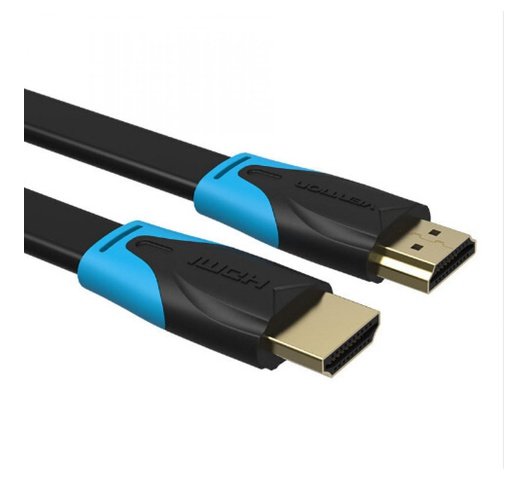
Vention HDMI Cable 2M Meter
Vention HDMI Cable 2M Meter Black AACBH.
Key Features:
- Color: Black
- Widely Compatible:The HDMI cable is ideal for all HDMI devices,like Blu-Ray player,Roku,PS3,PS4,Xbox One,Xbox 360,Nintendo Wii,HDTV,laptop,monitor,or projector.
- Important Note:0.75m-5m,support 4K at 60Hz,bandwidth up to 18Gbps;8m-10m
- Support 4K at 30Hz,bandwidth up to 10.2Gbps;15m cable support 1080P
SKU: n/a -
Vention Accessories, Vention USB
Vention Multi-function USB-C to HDMI/USB-C Docking Station 0.15m
-8% Vention Accessories, Vention USB
Vention Multi-function USB-C to HDMI/USB-C Docking Station 0.15m
Multi-function USB-C to HDMI/USB-C Docking Station 0.15m
Key features;
- Brand: Vention
- Name: Multi-function USB-C to HDMI+USB-C Gen
- 1+USB3.0+USB2.0*2+RJ45+SD+TF+PD Docking Station Mirrored Surface Type
- Model: TFHHB
- Interface Technics: Nickel-plated
- Transmission Speed: 5Gbps(Type-C Gen 1)/5Gbps(USB 3.0)/480Mbps(USB 2.0)
- Network Speed: 10/100/1000Mbps
- Resolution: 4K@60Hz
- Rated Input: 100W
- Conductor: Tinned-copper
- Shell: Aluminum Alloy + Acrylic
- Compatible Memory: CardMicro SD/Micro SDHC/Micro SDXC/SDHC/SDXC
- Card Slot: 2.0 SD 2-LUN (Dual card simultaneous read)
- Memory Card Capacity: 265G
- Shielding: Aluminum Foil + Metal Braided
- Jacket: TPE
- AWG: 26+34AWG
- OD: 4.2mm
- Length: 0.15m
SKU: n/a -
Vention Accessories, Vention HDMI
Vention HDMI 10 Meter Black-AACBL
Vention HDMI Cable 10 Meter Black, VEN-AACBL.
Key Features:
- HDMI to HDMI Cable: Vention HDMI 2.0 cable is designed for your laptop connect to equipment with maximum 4k,such as PS3,PS4,projector.
- 4k HDMI 2.0: Supports 4K UHD,3D 1080P Full HD, Ethernet Channel, 48-Bit Deep Color and Audio Return Channel (ARC).
- HDR Dolby Vision , HDCP compliant, bandwidth up to 18Gbps and backwards compatible with HDMI 1.4.
- More fun for playing games and share work ideas on larger screen by connections.
- Important Note:0.75m-5m,support 4K@60Hz,bandwidth up to 18Gbps;8m-10m,
SKU: n/a



There are no reviews yet.