
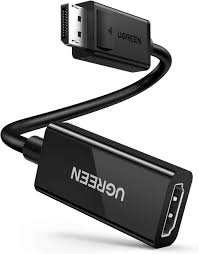

UGREEN DisplayPort to HDMI Female Converter – MM137
The UGREEN MM137 converts DisplayPort output to HDMI format through a compact plug-style adapter. This converter attaches directly to your computer’s DisplayPort and provides an HDMI port for connecting standard HDMI cables to monitors, TVs, and projectors. Students can use their existing HDMI cables with DisplayPort-equipped computers, while business professionals gain a portable adapter that fits easily in laptop bags for presentations in various venues.
Key Features & Benefits
- Compact Plug-Style Design: Attaches directly to DisplayPort without cables, minimizing bulk and weight in your laptop bag while reducing the connection points where cables can fail or come loose.
- Use Your Existing HDMI Cables: Provides an HDMI female port that accepts any standard HDMI cable, letting you leverage cables you already own rather than buying specialized DisplayPort cables.
- 4K@30Hz Video Support: Delivers Ultra HD resolution up to 3840×2160 at 30Hz, ensuring sharp image quality on modern 4K displays while maintaining compatibility with 1080p and lower resolutions.
- Gold-Plated Connectors: Corrosion-resistant contacts maintain signal integrity and withstand repeated connecting and disconnecting during travel and daily use without degradation.
- Plug-and-Play Compatibility: Works immediately across Windows, macOS, and Linux systems without driver installation, making setup instant when connecting to unfamiliar displays.
Technical Specifications
Video Performance
- Input: DisplayPort male (DP 1.2 compatible)
- Output: HDMI female (Type A, standard)
- Maximum Resolution: 4K@30Hz (3840×2160)
- Supported Resolutions: 4K@30Hz, 2K@60Hz, 1080p@60Hz, 1080p@120Hz, 1080i, 720p
- Color Depth: 24-bit RGB
- Bandwidth: Up to 10.8 Gbps
Audio Capabilities
- Audio Support: Multi-channel audio up to 7.1 surround
- Audio Formats: LPCM, Dolby Digital, DTS
- Audio Transmission: Through HDMI output to compatible displays
Physical Design
- Dimensions: 40mm × 28mm × 13mm (1.6″ × 1.1″ × 0.5″)
- Weight: 18g (0.6 oz)
- Connector Type: DisplayPort male to HDMI female
- Housing Material: ABS plastic with aluminum heat sink panel
- Color: Black with gold-plated connectors
- Form Factor: Compact dongle (no cable)
Construction Features
- Contact Material: Gold-plated pins
- Shielding: Internal EMI shielding
- Strain Relief: Molded connector housing
- Chipset: Active conversion chipset (powered via DisplayPort)
Compatibility
- Source Devices (DisplayPort output):
- Desktop computers with DisplayPort
- Laptops with DisplayPort or Mini DisplayPort
- Graphics cards (NVIDIA, AMD, Intel)
- Docking stations
- Some tablets with DisplayPort output
- Display Devices (via HDMI cable):
- HDMI monitors, TVs, projectors
- Computer displays, gaming monitors
- Conference room displays
- Operating Systems:
- Windows 7/8/10/11
- macOS 10.6 or later
- Linux
- Chrome OS
- Standards: DisplayPort 1.2, HDMI 1.4, HDCP 1.4
Direction
- Unidirectional: DisplayPort source → HDMI display only
- Not compatible: HDMI source → DisplayPort display
Use Cases & Applications
For Students
Connect your desktop gaming PC to dorm room HDMI monitors without buying DisplayPort-specific displays. Graphics cards typically include DisplayPort outputs, and this adapter lets you use affordable HDMI monitors with your existing HDMI cables.
Present class projects in various classrooms equipped with HDMI projectors. Keep this lightweight adapter in your laptop bag so you’re always ready to connect regardless of which presentation space you’re assigned.
Set up study stations using borrowed or secondhand HDMI monitors. The adapter’s portability means you can move between your desk, study lounges, and group project spaces while using whatever displays are available.
For Business Professionals
Ensure presentation readiness across different meeting venues. Client offices, hotels, and conference centers standardize on HDMI for displays—this adapter guarantees you can connect your DisplayPort laptop without depending on venue-provided equipment.
Create a permanent desktop setup using existing HDMI monitors. Rather than replacing functional displays when upgrading to computers with DisplayPort, this inexpensive adapter maintains compatibility with your current equipment.
Hot-desk efficiently in flexible office environments. The adapter’s tiny form factor attaches semi-permanently to your laptop or docking station, making it effectively invisible while ensuring connectivity wherever you work.
For Traveling Professionals
Pack light while maintaining connection versatility. At 18 grams, the adapter weighs less than a pen and occupies minimal space in laptop bags, eliminating the need to carry multiple heavy cables.
Connect to hotel room TVs for evening work or entertainment. Use the room’s existing HDMI cable (or your own short HDMI cable) with this adapter to mirror your laptop screen onto the larger display.
For Desktop Computer Users
Build multi-monitor setups using existing HDMI monitors. Most graphics cards provide multiple DisplayPort outputs but only one or two HDMI ports—these adapters let you connect additional HDMI monitors to available DisplayPort connections.
Connect older HDMI displays to new computers without display replacement costs. Modern workstations increasingly omit HDMI in favor of DisplayPort, and this adapter bridges that gap affordably.
For Gaming Setups
Connect gaming PCs to living room TVs for big-screen gaming. Modern GPUs favor DisplayPort for monitors, but TVs exclusively use HDMI—keep this adapter attached to your PC for quick connections when moving your gaming rig between rooms.
Add secondary HDMI displays to gaming stations for streaming overlays, Discord, or guides. Use your GPU’s extra DisplayPort outputs with these adapters to create comprehensive streaming or content creation setups.
For Educational Institutions
Support BYOD programs where students and teachers bring various devices. Stock a few of these adapters to accommodate staff with DisplayPort laptops presenting on HDMI-equipped classroom projectors.
Extend computer lab flexibility without infrastructure overhaul. Labs with mixed equipment benefit from keeping adapters available for the minority of systems with DisplayPort when most displays use HDMI.
For Home Offices
Connect work laptops to home displays during remote work. Corporate laptops increasingly feature DisplayPort while home monitors typically use HDMI—this adapter seamlessly bridges your work and home technology.
Repurpose household TVs as temporary monitors for specific projects. Connect your computer to kitchen or bedroom TVs for large-screen visibility during video editing, photo sorting, or presentations rehearsal.
Technical Considerations
This adapter converts signals unidirectionally from DisplayPort to HDMI only. The reverse direction (HDMI to DisplayPort) requires different technology and won’t work with this adapter. The DisplayPort male connector plugs into your computer, and you connect an HDMI cable from the adapter to your display.
The 4K@30Hz maximum resolution reflects HDMI 1.4 bandwidth limitations. For productivity work, web browsing, and most business applications, 30Hz at 4K provides perfectly usable performance. However, 4K@60Hz requires HDMI 2.0 adapters, which cost more but deliver smoother motion. At 1080p, the adapter supports 60Hz refresh rates without limitations.
Active conversion chipsets inside the adapter draw power from your computer’s DisplayPort. Nearly all modern computers provide adequate power, but some very old or low-power devices might not supply sufficient current. This manifests as no signal or intermittent connection—rare with equipment from the last decade.
The compact plug-style design places the adapter’s weight directly on your DisplayPort connector. While designed for this use, avoid placing excessive stress on the connection—don’t hang heavy HDMI cables unsupported from the adapter. Use cable clips or routing to support the HDMI cable’s weight separately from the adapter.
Some graphics cards include both full-size DisplayPort and Mini DisplayPort outputs. This adapter fits only standard DisplayPort—if your device has Mini DisplayPort (common on older MacBooks and ultrabooks), you’ll need a Mini DisplayPort to DisplayPort adapter first, or purchase a Mini DisplayPort to HDMI adapter directly.
Audio transmission works automatically when connecting displays with built-in speakers or audio output. Your operating system should detect the HDMI audio device and make it available in sound settings. Windows users may need to right-click the volume icon, select “Sound settings,” and choose the HDMI output as their playback device.
Heat Management: The adapter generates minimal heat during normal operation due to the active chipset inside. The aluminum panel helps dissipate this heat. If the adapter feels warm during use, this is normal—only sustained high temperatures or burning smells indicate problems (exceedingly rare).
Cable Recommendations: Use high-speed HDMI cables rated for the resolution you need. For 4K output, ensure your HDMI cable explicitly supports 4K@30Hz or higher. Standard HDMI cables work fine for 1080p and below. Poor quality or damaged HDMI cables cause more connection issues than the adapter itself.
Multi-Adapter Configurations: You can use multiple MM137 adapters simultaneously on computers with multiple DisplayPort outputs. This works well for multi-monitor setups where all displays use HDMI. Ensure your graphics card supports the total number of displays you’re connecting—most modern GPUs handle 3-4 displays without issues.
Important Notes: The adapter doesn’t require external power—it draws everything needed from the DisplayPort connection. If no image appears, verify your display is set to the correct HDMI input, ensure both the adapter and HDMI cable are fully seated, and confirm your computer recognizes the display in system settings. Some laptops require pressing Fn+F7 or a similar display toggle key to activate external displays. For MacBooks, you may need to adjust display arrangement in System Preferences. The adapter maintains HDCP 1.4 support for protected content like streaming services and Blu-ray playback, though HDCP 2.2 content may not display. Gold-plated connectors resist oxidation but still benefit from occasional cleaning—use compressed air to remove dust from ports, never insert anything metal that could bend pins. Store the adapter in a protective case when traveling to prevent connector damage from items shifting in bags.


Reviews
There are no reviews yet.